
Signos employs AI-powered Natural Language Processing (NLP) to allow you to simply describe your meal and create a log from that description.
Tips for describing your meal:
- Speak clearly, and don’t pause for too long. Once you stop speaking, the app stops listening.
- Try to keep it simple! If you need to log the specific brand, searching for it or scanning the barcode may be a better option.
Instructions for logging a meal using NLP:
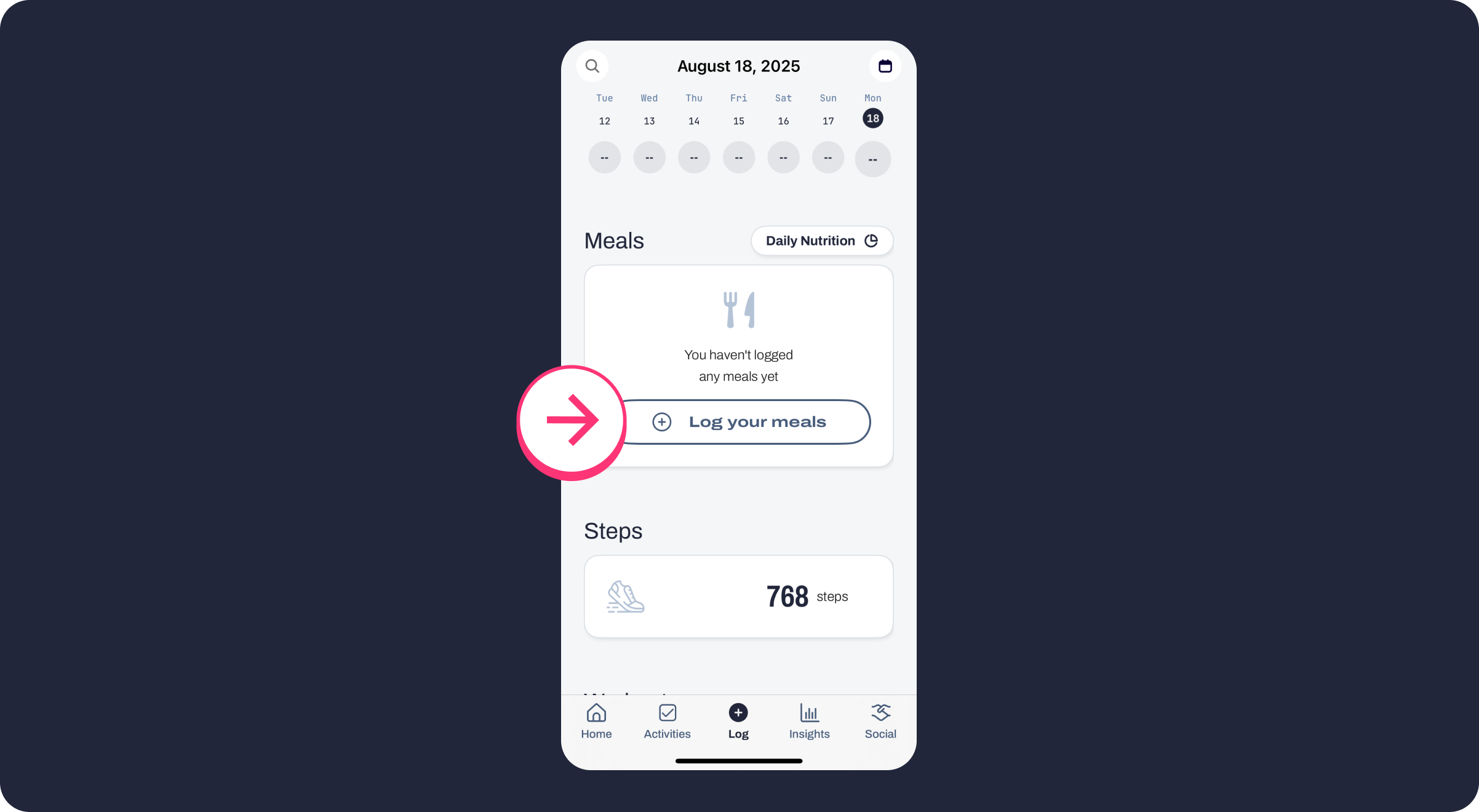
Step One: Go to the Log tab and select "Log your meals"
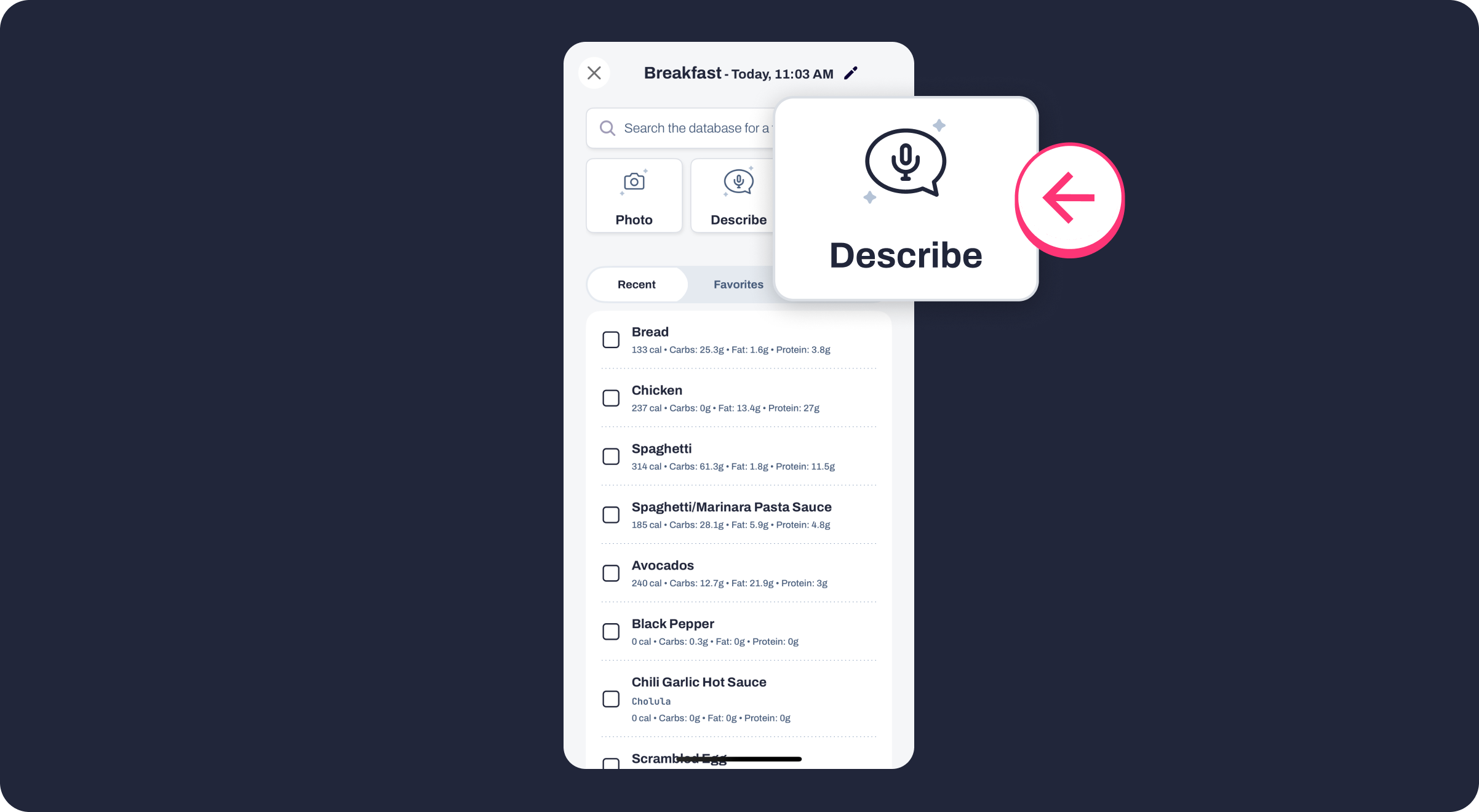
Step Two: Select the "Describe" icon at the top
Step Three: Tap to start recording
When you are ready to speak, tap the microphone icon at the bottom of the screen. The screen will display "listening" and you'll see a colorful wave pattern moving as you speak. For example, say "Two scrambled eggs, toast, and a handful of blueberries." The app will write back to you what it heard.
Step Four: Tap to Stop Recording
Once you have finished speaking your description, tap the microphone icon again to pause or stop recording.
Want to add more? Just tap the microphone icon again to resume talking (e.g., "and a glass of water").
Need a do-over? Tap the redo (circular arrow) icon on the left to start fresh.
Prefer typing? You can always tap Use Keyboard at the bottom to manually adjust the text.
Step Five: Once you're satisfied with your description, tap the "arrow" icon and Signos' NLP AI will build your meal from your description.
Step Six: Once it's finished, you can review the items and quantities that Signos added from your description.
You can also use this screen to manually edit, add, or remove items from the meal. When you're finished, select "Save Meal."
Comments
0 comments
Article is closed for comments.