
What is Body Composition Scanning
Weight alone doesn't tell you what's really changing in your body; whether you're losing fat, losing muscle, or both. Body Composition Scanning will let you scan your body right from your phone to see the fuller picture: body fat percentage, lean muscle mass, visceral fat, and key measurements like your waist, hips, chest, arms, and legs.
It's built to help you see change beyond the scale, protect muscle as your body changes, and connect your progress to the rest of your Signos data.
Getting started with Body Scanning in the Signos app
Here is exactly where to find this feature inside your Signos app so you can start tracking:
- Tap the Log Tab: Open your Signos app and tap the Log tab at the bottom of your screen.
- Head to Glucose & Habits: Once you are on the log screen, tap the Glucose and Habits tab near the top.
- Scroll to Measurements: Scroll down the screen until you reach the Measurements section.
- Select Body Scan: Tap Body Scan from the listed options to launch the tool and start your scan!
How to complete the body scan:
- Once you’re ready to start, tap the consent box in the privacy note pop-up to continue the body scan.
- Log your weight and confirm your height.
- A tutorial video will start with instructions on preparing for the body scan and best practices.
- Body-scanning tips will pop up after the tutorial video; tap “Start Scan” when you’re ready to proceed.
- You will need to provide Signos with access to your Camera and complete the volume test.
- Follow the positioning guide - The app will walk you through exactly how to stand and frame the shot. It might prompt you to step back or move to one side to get the best results.
- Let the scan process. This takes a few moments; stay in frame until it's done.
- Review your results. See your body fat %, lean muscle mass, visceral fat, and measurements. Your scan is automatically saved to your history with a timestamp and progress avatar.
| 💡 | Get the clearest results. Scan in a well-lit space with a plain background, and try to wear similar clothing each time — it makes scan-to-scan comparisons easier to trust. |
Track & understand your results
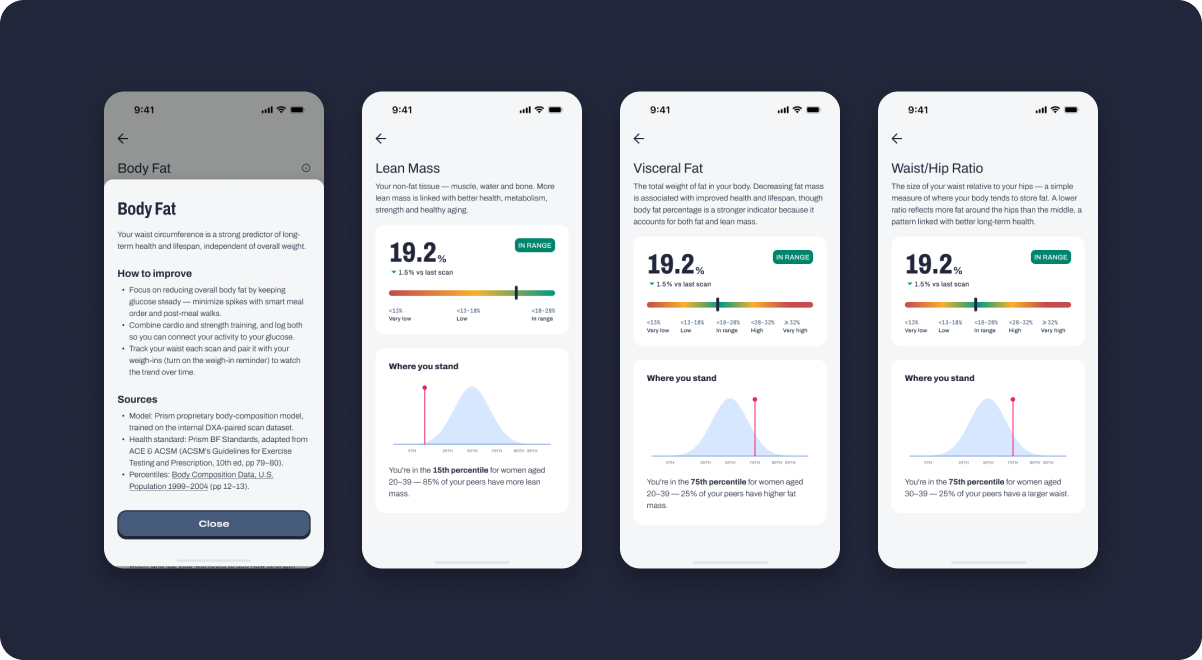
Every scan is saved automatically, so you can watch trends build over time instead of judging progress by a single number.
What you'll be able to see:
- Body Fat
- Fat Mass
- Lean Mass
- Appendicular Lean Mass
- Skeletal Lean Mass
- Waist-to-hip ratio
- Body Measurements
You’ll also be able to see personalized insights and recommendations based on your specific body scan results. The insights are based on your sex and age to help you see how your results compare. Your recommendations are at the end of your body scan results. These recommendations will focus on actionable changes and goals to help continue your progress.
| ⚠ | Not a diagnostic tool. Body Composition Scanning gives you a real-time estimate to help you track your own trends; it isn't a substitute for lab-grade testing or medical advice. Talk to your care team about any results that concern you. |
Troubleshooting & FAQs
| WHAT'S HAPPENING | WHAT TO TRY |
| I can’t access “Scan Body Composition” in my app. | This feature is only available for Signos members with an active subscription. |
| My scan won't complete or process. | Follow the on-screen positioning guide closely, scan in a well-lit space with a plain background, and check your internet connection. |
| My results look different from a scan I got elsewhere. | Smartphone-based scans give a real-time estimate, not a lab-grade reading. Small differences between tools are normal; the most useful signal is your own trend over time. |
| I can’t find my previous body scans. | Go to your Log tab, tap the Calendar icon in the top-right corner of the page, and open the day of your previous body scan to see your previous body scan results. |
Privacy
Signos never stores the raw video or the avatar. We only ever receive and keep the numeric results. The capture itself lives only with the processing partner, briefly, and only for troubleshooting. It is then automatically deleted.
Still have questions? Contact Signos Support at support@signos.com
Comments
0 comments
Article is closed for comments.